The interface
noxen is a terminal UI with five tabs. This page describes how to connect to an app and what each tab does.
Launching noxen
Section titled “Launching noxen”noxenOptional flags:
| Flag | Meaning |
|---|---|
--project FILE | Open an existing .noxen project and restore its history |
--new-project NAME | Create a new project database with the given name |
Home tab
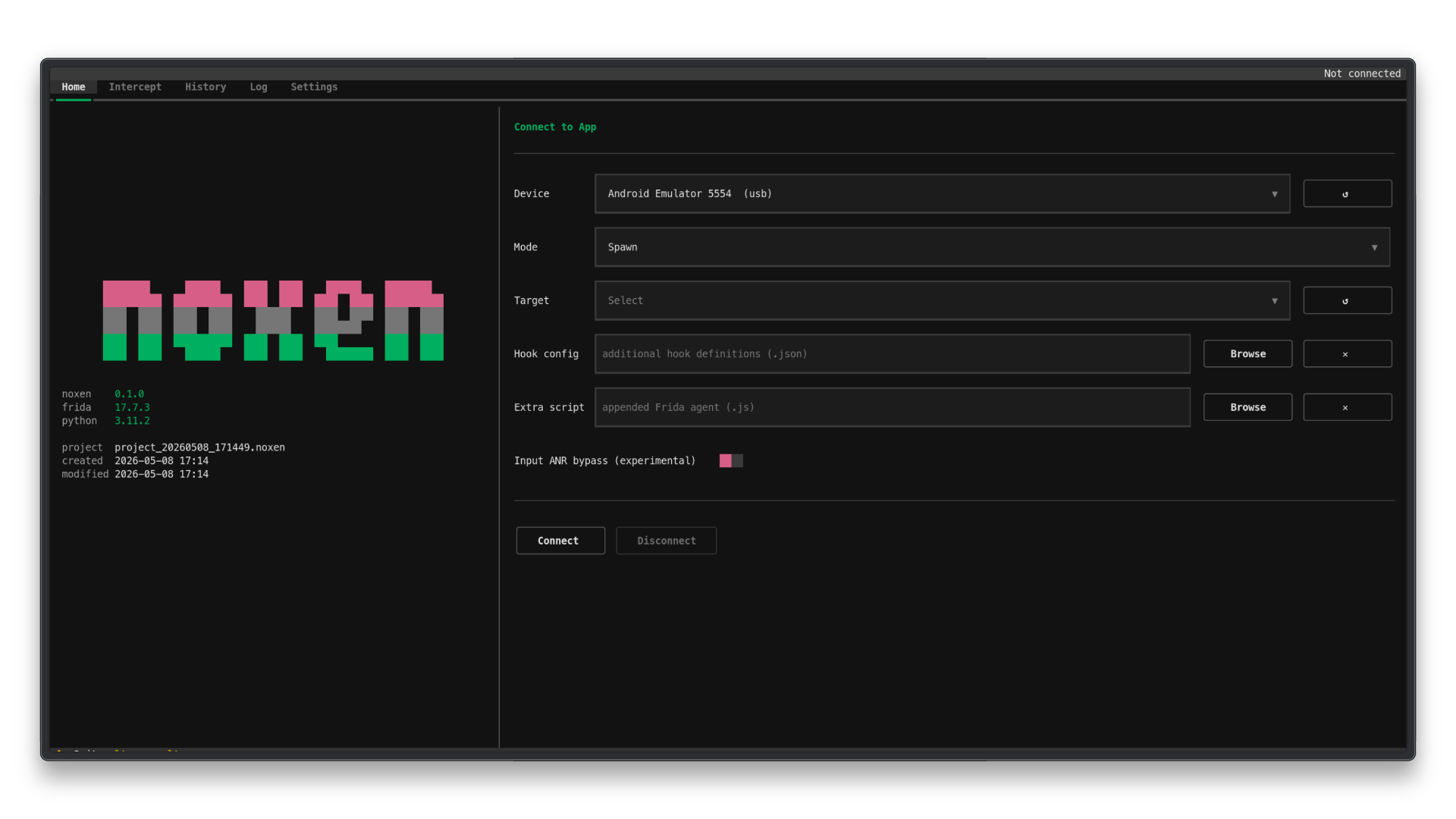
Section titled “Home tab”The Home tab is where you select a target and connect.
Device
Section titled “Device”noxen scans for connected Frida-compatible devices on startup. The first USB device found is selected automatically. Use the refresh button (↺) to rescan.
Choose how to attach to the target process:
| Mode | When to use |
|---|---|
| Spawn | Starts the app from scratch — use when you need to catch startup behavior |
| Attach (app name) | Connects to an already-running app by visible name |
| Attach (PID) | Connects to a process by numeric PID |
Spawn is the default.
Target
Section titled “Target”The target dropdown lists processes or packages available on the selected device for the chosen mode. Use the refresh button (↺) to reload it.
Hook config and Extra script
Section titled “Hook config and Extra script”Both fields accept a file path. Use the Browse button to navigate the filesystem
and select a file, or type the path directly. Use ✕ to clear the field.
The selected paths are saved in the current project and restored when that .noxen
project is reopened.
- Hook config — additional hook definitions (JSON) loaded alongside the bundled default hooks. See Hook configuration.
- Extra script — a JavaScript file appended to the Frida agent after the bundle.
Input ANR bypass (experimental)
Section titled “Input ANR bypass (experimental)”When enabled, noxen opens a second Frida session against system_server to suppress
input-dispatch ANRs while an intent is held. Intended for rooted research devices only.
The internal hold window is fixed at two minutes; it is not exposed as a user setting
because Android and OEM frameworks do not guarantee that an ANR dialog appears exactly
when that window expires.
See Android behavior and limits.
Connect and Disconnect
Section titled “Connect and Disconnect”Connect starts the Frida session and switches to the Intercept tab.
Disconnect cleans up both the target app session and the system_server session if
active. The button is enabled only when a session is live.
Intercept tab
Section titled “Intercept tab”The active interception view. Each blocked intent appears as a labelled block. Use the buttons or command input to forward, modify, or drop it.
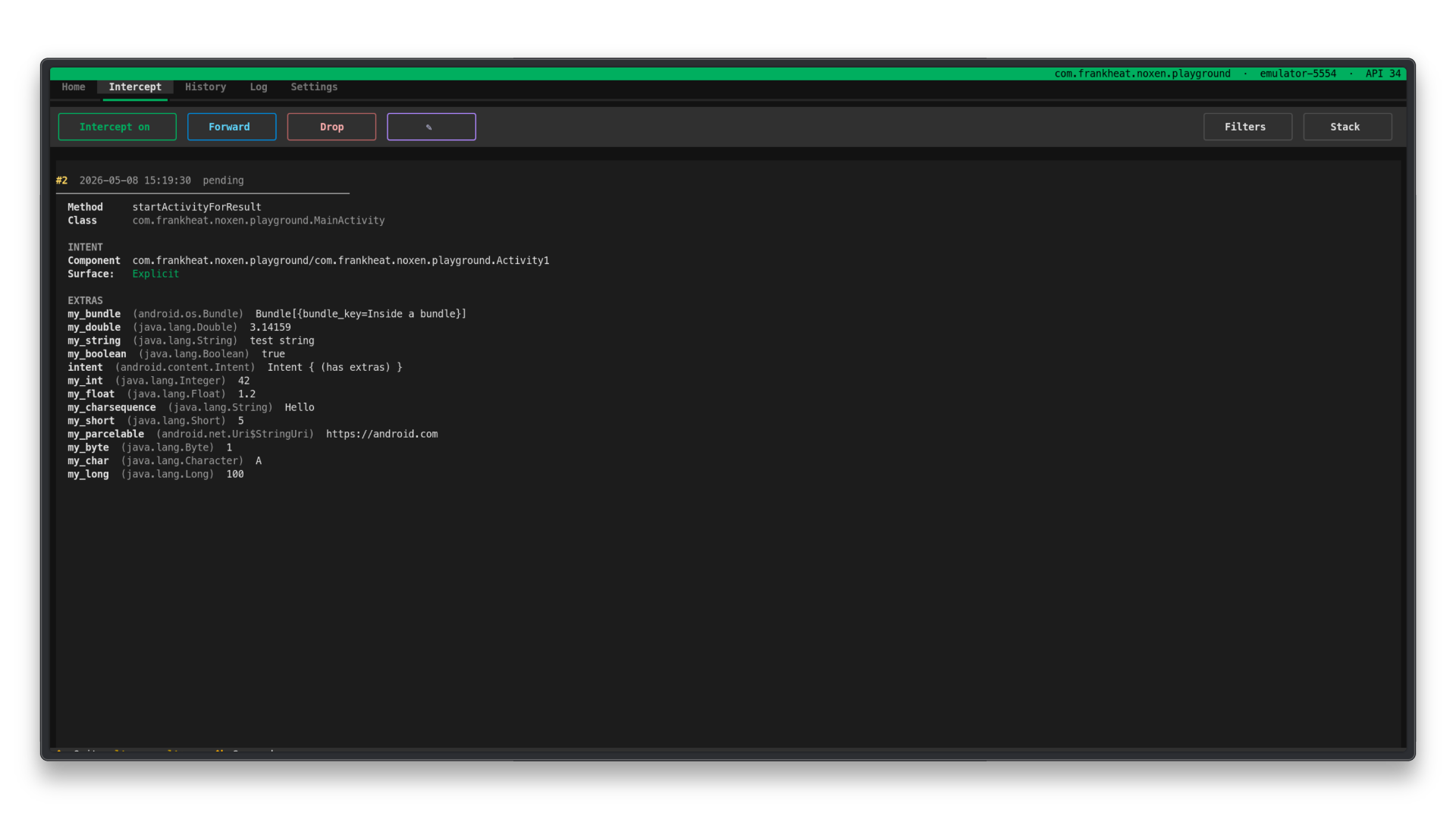
See Intercepting and modifying.
History tab
Section titled “History tab”Stores every captured intent, including those auto-forwarded by filters. Supports search, sorting, column selection, and detail view.
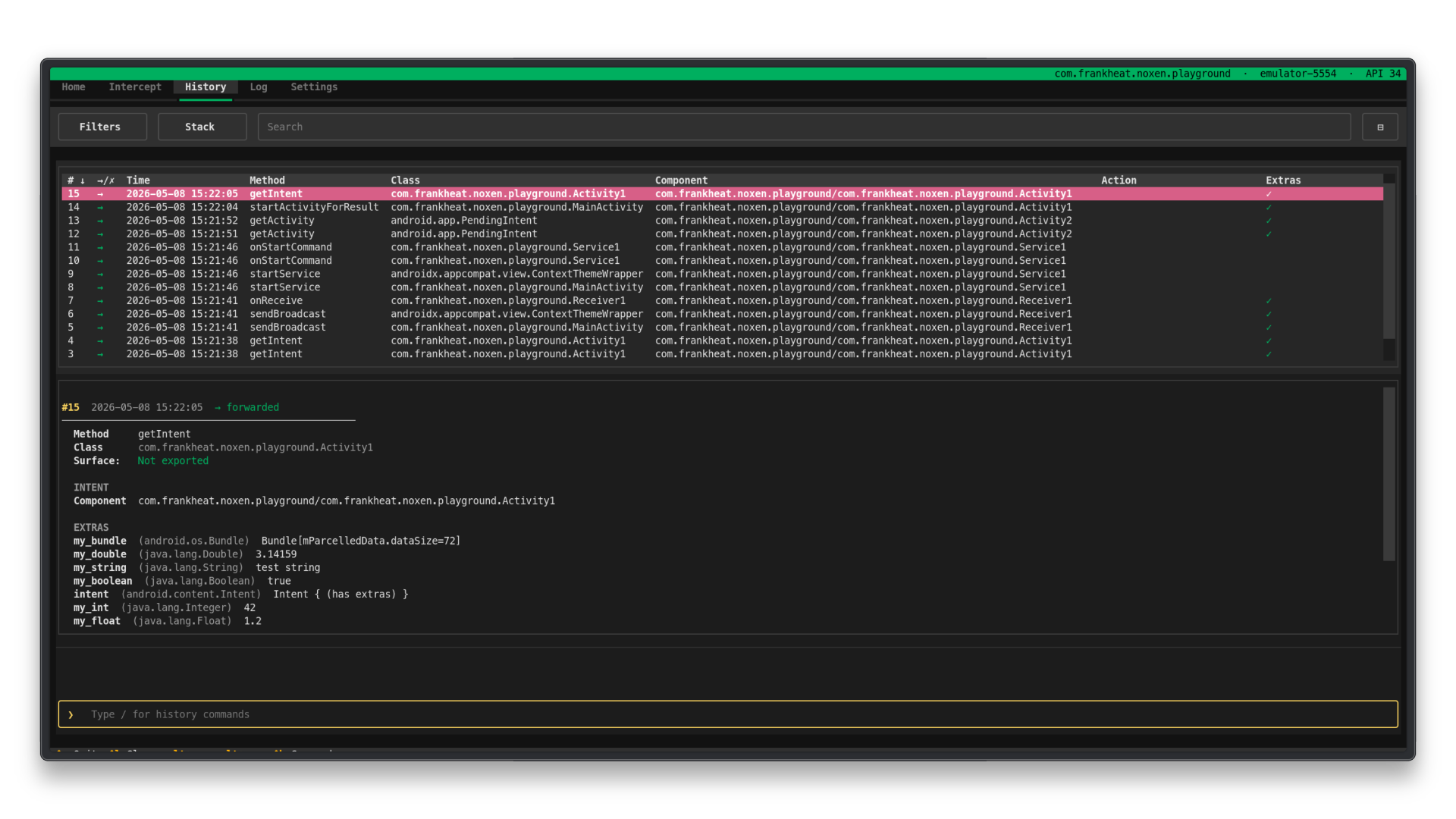
See History and projects.
Log tab
Section titled “Log tab”Displays Frida and system messages. Includes:
- Session attachment and detachment events.
- Hook installation results.
system_serversession messages when Input ANR bypass is active.
Enable Verbose logs to see debug-level messages such as hold lifecycle events and per-hook installation details.
Settings tab
Section titled “Settings tab”Stores startup defaults that apply to every new session:
| Setting | Meaning |
|---|---|
| Intercept on startup | Whether blocking mode starts enabled |
| Stack trace on startup | Whether stack traces are shown by default |
| Stack depth | Number of stack frames shown |
Press Save to persist changes. noxen stores these user settings in the standard per-user config directory for the operating system, not in the project checkout:
- Linux:
$XDG_CONFIG_HOME/noxen/settings.txt, or~/.config/noxen/settings.txt - macOS:
~/Library/Application Support/noxen/settings.txt - Windows:
%APPDATA%\noxen\settings.txt
Common startup problems
Section titled “Common startup problems”frida-serveris not running on the device.- Host and device Frida versions are incompatible.
- The target process is not running (for attach modes).
- USB connection is not recognized.